
Product page requests#
Anyone granted access to Price Beat in BigCommerce can manage these settings under Settings → Product page requests. New stores start with the form disabled: enable product-page requests and save settings to install the storefront script.
- Enable Price Beat on product pages controls the request widget.
- Button text defaults to Found a Better Price?
- Price Beat terms appear in the customer form.
- Offer price tax basis must match your catalogue prices before offers can be approved.
- Default expiry (days) starts new approvals with your preferred duration; staff can choose the individual offer expiry.
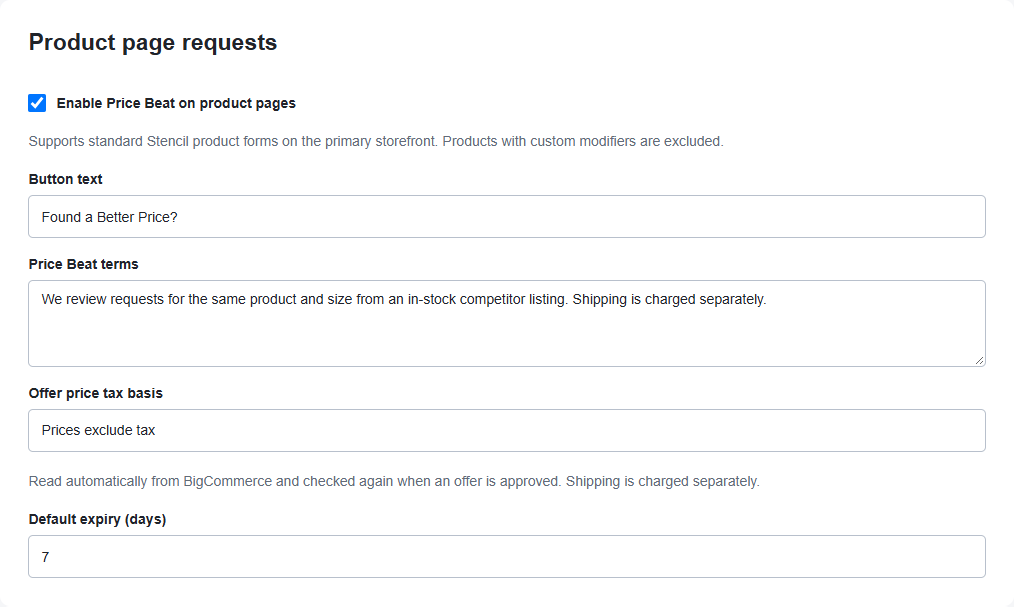
Select Save settings after editing. Confirm a sample checkout before sending customer offers, especially when changing tax settings.
Customer emails#
Each installed store has its own email brand name, sender and reply-to address.
- Enter Store name in emails.
- Enter the Sender email address verified with the email delivery service.
- Enter a Reply-to email address for customer responses.
- When the delivery service is connected, enable Send acceptance and decline emails.
- Select Save settings.
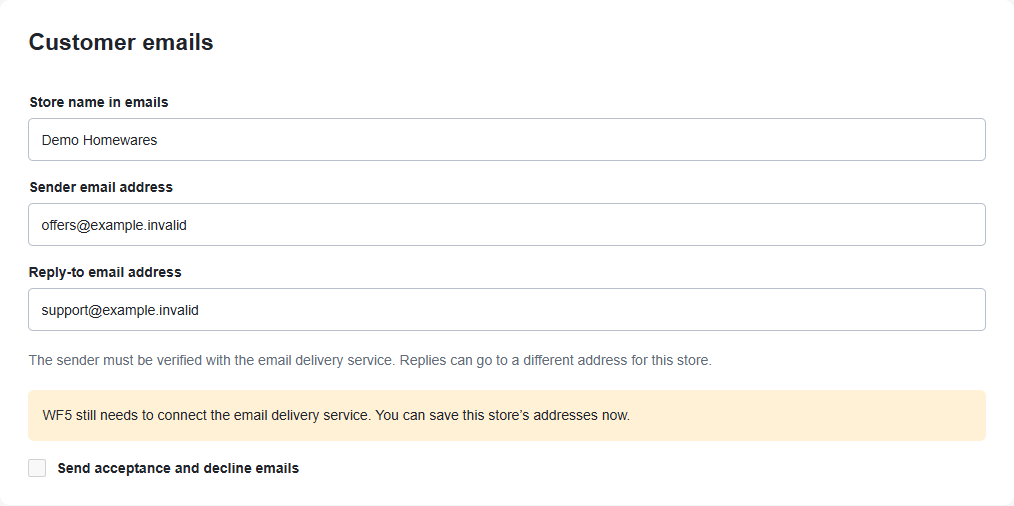
If the app says WF5 still needs to connect the email service, the addresses can be saved now but live sending remains unavailable. Ask Web Force 5 to arrange the delivery setup.
Follow up email status#
Queued means the message is waiting to be processed. Accepted by email service means the provider accepted it; it does not prove inbox delivery. A failed, blocked or uncertain email needs review.
After resolving email setup or a sending error, use Retry email on the request when available. The app checks whether an offer is still shareable before retrying. If the outcome is uncertain, refresh and ask for support rather than repeatedly sending another message.