
Check the request and product#
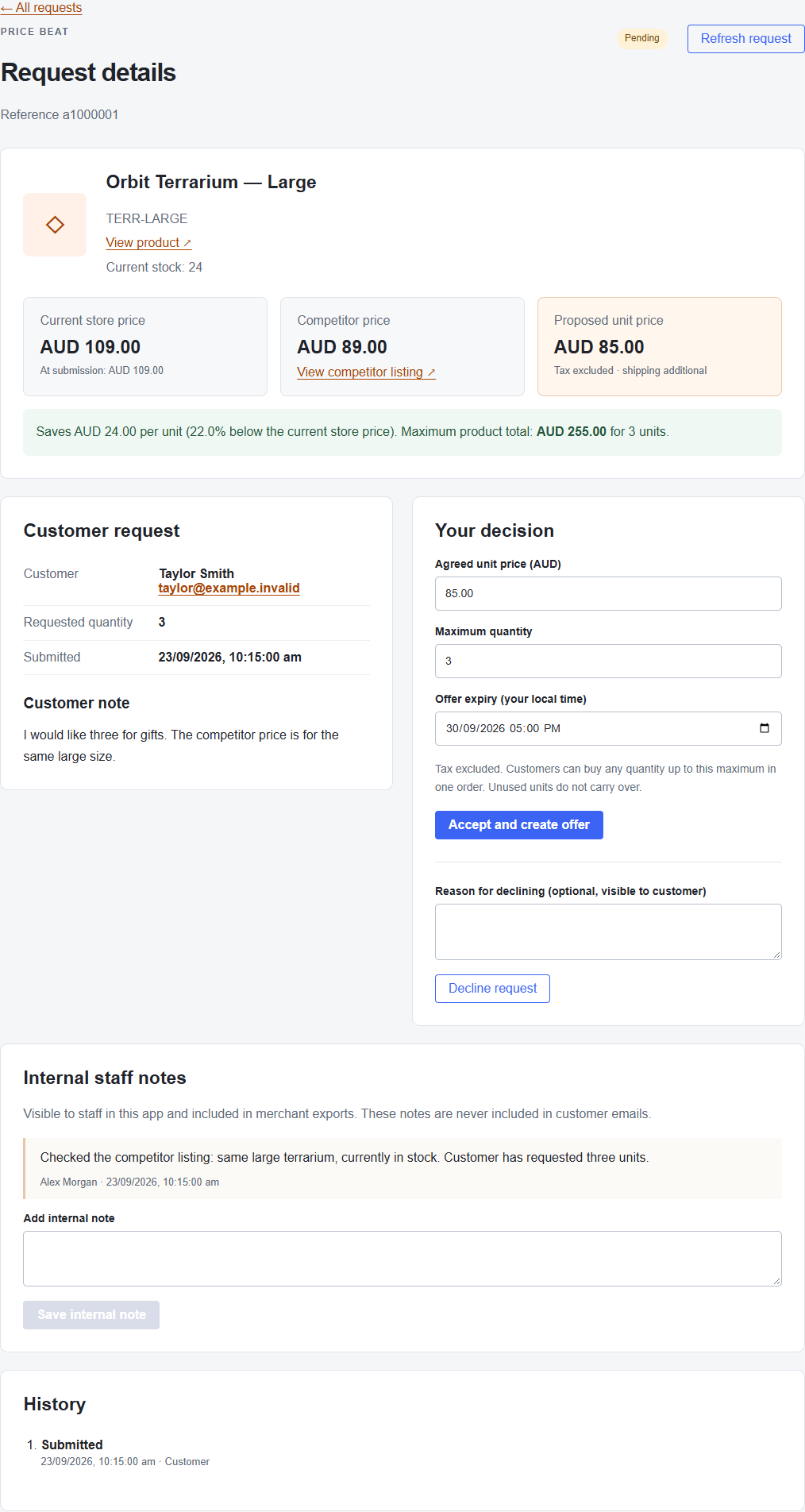
Open a pending request. Compare the current store price, original submitted price and competitor unit price. Follow View competitor listing to check the matching product, variant, stock and any conditions under your store policy.
Review the customer note and requested quantity. The comparison shows the proposed saving and maximum product total; shipping is additional and the displayed tax basis comes from Settings.
Accept and create an offer#
- Set Agreed unit price below the current store price.
- Set Maximum quantity from 1 to 100.
- Choose Offer expiry (your local time).
- Select Accept and create offer.
- Check both the resulting offer status and customer email status.
For example, an approval for up to 3 units at $40 each allows a purchase of 1, 2 or 3 eligible units in one order. It does not require all 3, and unused units do not carry over to another order. The offer applies to the selected product or variant.
The app creates a native BigCommerce promotion and unique coupon. If it shows Preparing offer, use the recovery action described in Troubleshooting before sharing anything with the customer.
Decline a request#
Optionally enter Reason for declining, then select Decline request. This reason is visible to the customer in the decline email. Use an internal staff note for comments that should stay with your team.
No coupon is created for a declined request. Check the email status after deciding; disabled or incomplete email setup can leave a decision saved without a message being sent.